
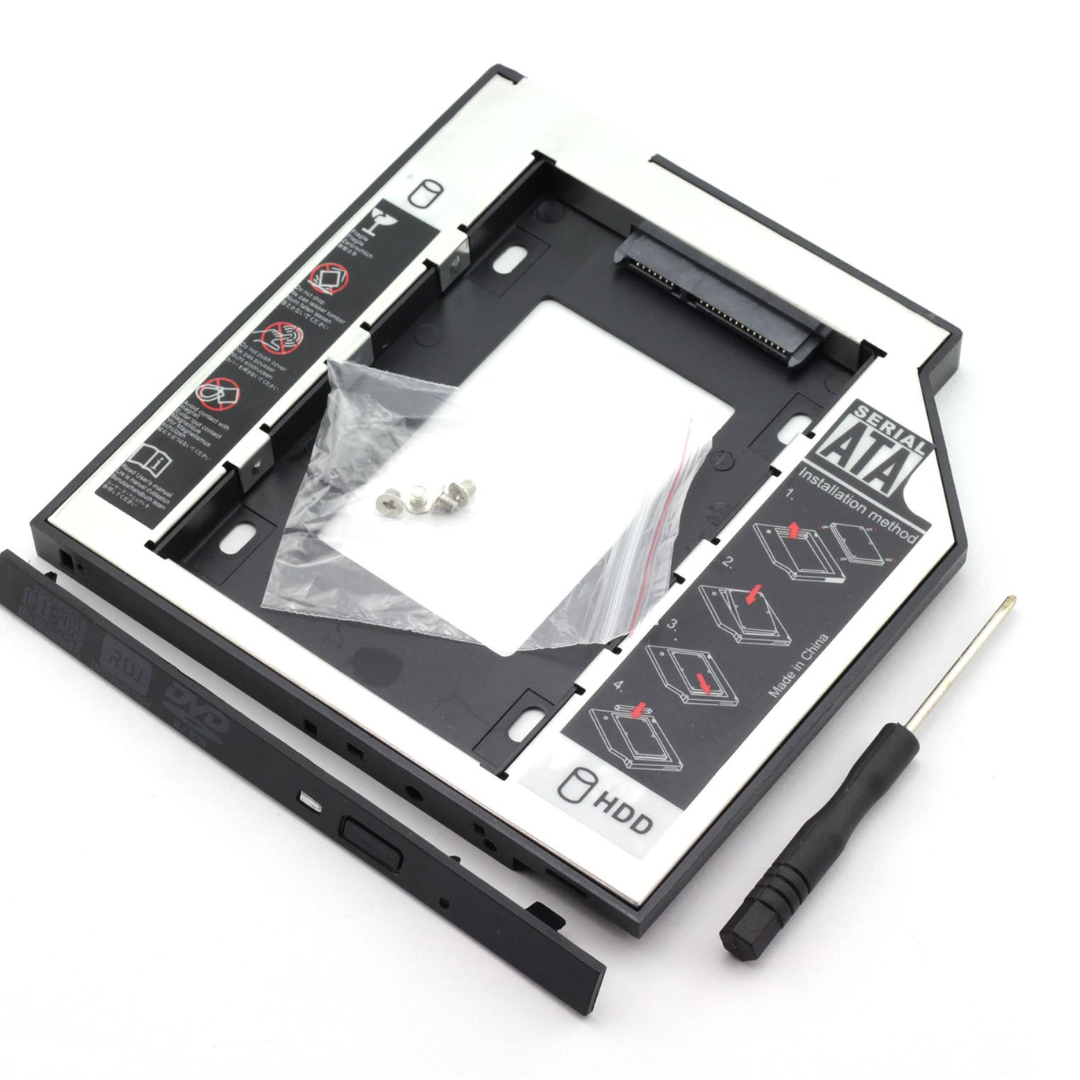
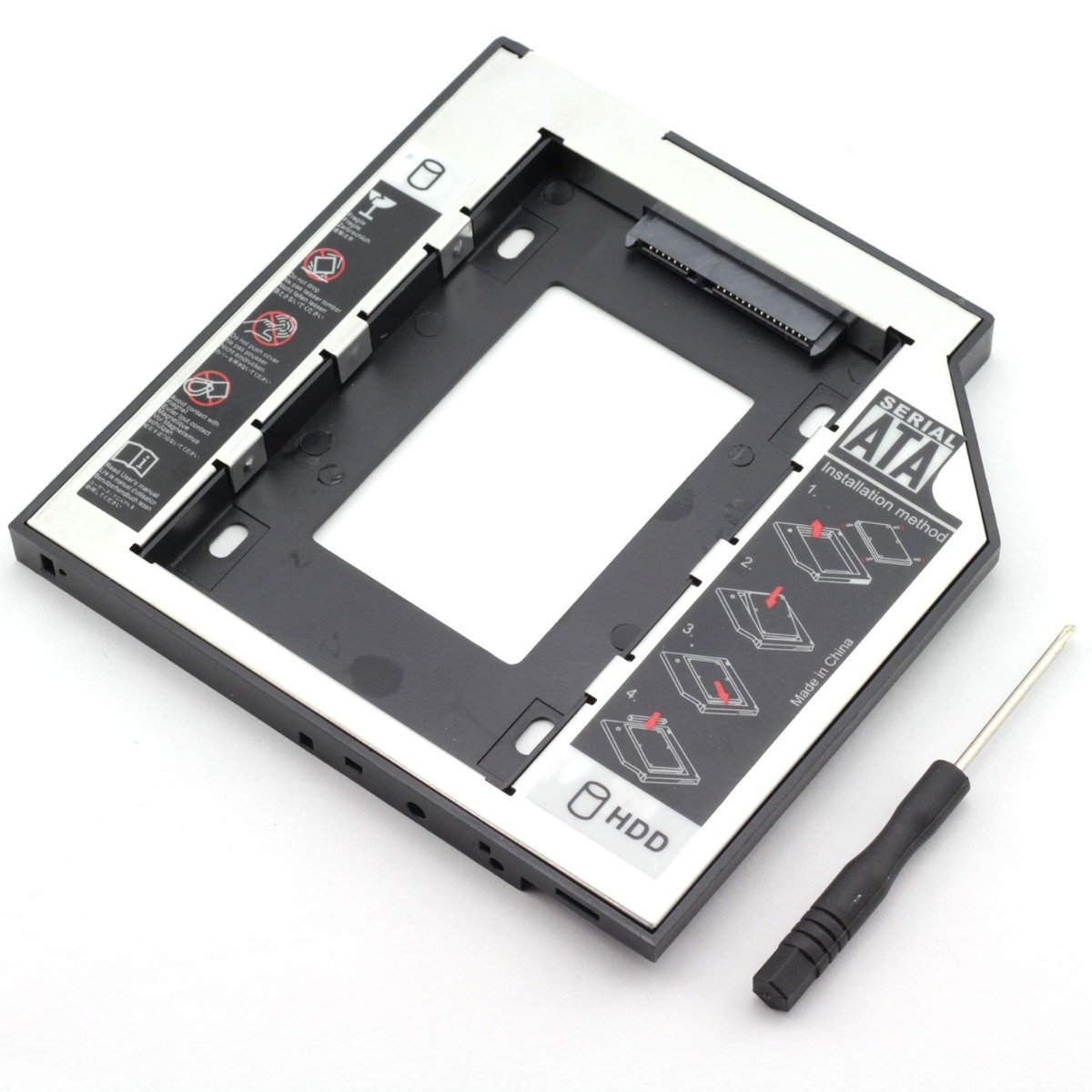

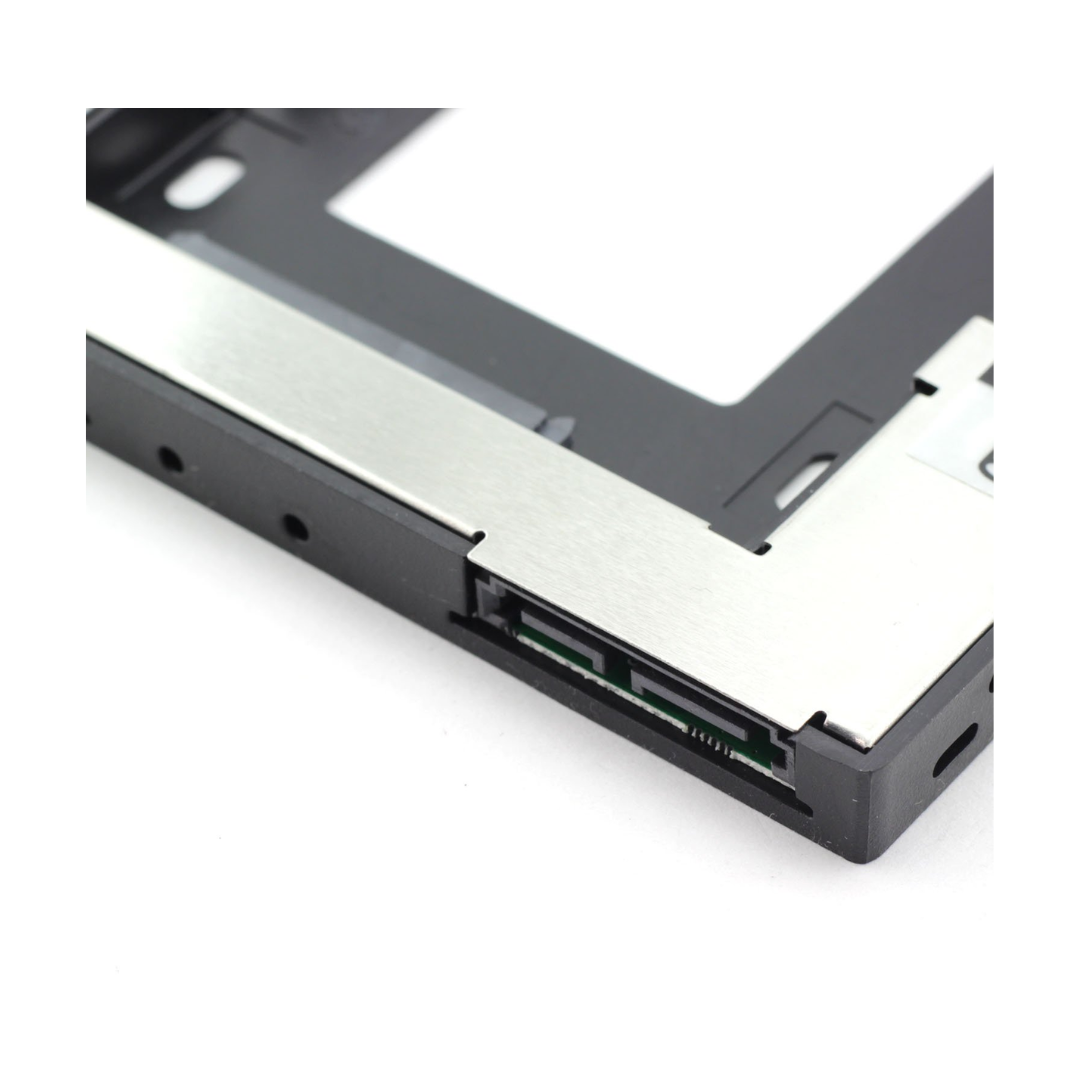


The Haysenser Second HDD Caddy 9 mm is a laptop storage upgrade accessory that allows you to replace your optical drive (DVD/CD bay) with a second 2.5-inch SATA hard drive or SSD. With its 9 mm thickness form factor it fits snugly into many laptop optical drive slots designed for that height, enabling users to expand storage without sacrificing the main drive bay. The Haysenser caddy is constructed with a durable fitted tray, SATA interface and mounting screws, offering a practical method to install additional storage for data, backups or dual-drive configurations. Ideal for laptops wanting extra capacity or better performance, this adapter tray merges seamlessly with your machine’s internal design.
Key Features
Optical-Bay Replacement: Fits into a laptop’s 9 mm thick optical drive slot to house a second 2.5″ drive.
Supports 2.5″ SATA Drives: Accepts standard 2.5-inch SATA HDDs or SSDs for flexible storage expansion.
Durable Construction: Metal/aluminium or robust plastic tray minimizes vibration and ensures stable mounting.
Plug-and‐Play Installation: Connects via SATA interface; once mounted, the system recognizes the second drive like an internal disk.
Cost-Effective Upgrade Path: Provides an economical way to add storage or configure dual-drives without external enclosures.
Technical Specifications
| Feature | Details |
|---|---|
| Product Name | Haysenser Second HDD Caddy 9 mm |
| Model | (Variant: 9 mm optical bay height) |
| Drive Bay Height | 9 mm (fits laptops with 9 mm optical drive) |
| Supported Drive Size | 2.5″ SATA HDD/SSD |
| Interface | SATA (matching laptop’s optical bay SATA) |
| Material | Tray with mounting screws |
| Installation | Replace optical drive with caddy tray |
FAQ Section
Q1: Will this caddy work with my laptop’s optical drive slot?
A1: You must verify the height (9 mm) of your optical drive bay. If the bay is 9 mm thick, this caddy is compatible. Some laptops have 12.7 mm optical drives — those would not be a perfect fit.
Q2: Can I install an SSD instead of an HDD?
A2: Yes — the caddy supports 2.5″ SATA drives, so you can use an SSD or a traditional HDD depending on your needs for speed vs capacity.
Q3: Do I need special drivers for the second drive?
A3: Typically no. Once connected via SATA, the OS should detect the additional drive. You may need to initialize or format it via Disk Management (Windows) or Disk Utility (macOS).
Q4: Will my laptop be affected in performance or cooling?
A4: In most cases, performance is unaffected. However, ensure your laptop’s ventilation remains clear — adding another drive may slightly increase heat or power draw.












 No products in the cart.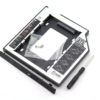
Reviews
There are no reviews yet.